
Start talking the Unix command language (OER)
In this unit you will get to know those original tools for viewing other users logged on at a specific time, messaging them, get information on those who are away and finally how to mail them - all that in the command line.
6.1 Whose who
6.1.1 who did what last?
Let’s see what manual pages exist related to who:
$ man −k who
w (1)        − Show who is logged on and what they are doing.
who (1)      − show who is logged on
whoami (1)   − print effective userid
The commands who (who is logged on), w (what they are doing) and whoami (own userid) all sound interesting:
$ who
a92  pts/2        2023-10-30 12:39 (177.167.157.57)
c2d  pts/3        2023-10-30 12:40 (128.138.148.252)
bbc  pts/4        2023-10-30 12:54 (128.138.148.252)
shows who is logged on to what terminal and from what IP addresses.
$ who am i
a01 pts/1 2023−10−30 16:47 (5.6.7.8)
is a special form of who referring to one's own login.
$ w
 17:34:06 up  8:15,  3 users,  load average: 0.08, 0.09, 0.12
USER  TTY   FROM    LOGIN@  IDLE  JCPU   PCPU  WHAT
a20 pts/0 1.2.3.4  16:26 49:26  1:13   0.39s sshd: pi [priv]
c1e pts/1 5.6.7.8  16:47  6.00s 2.17s  0.39s sshd: pi [priv]
a3e pts/2 5.6.7.8  17:32  1:26  1.21s  1.21s −bash
$ whoami
a01
shows "effective userid". Useful only if you use multiple accounts and forgot which one you are using. Not needed in our lab computer since the shell prompt contains the username.
The command last (last logged in) lists the users who logged in last.
# last −5
b3d  pts/1  1.2.3.4 Sat Feb 14 17:50   still logged in
b21  pts/0  2.3.4.5 Sat Feb 14 17:47   still logged in
reboot system 3.18.7+ Sat Feb 14 09:13 − 17:56  (00:10)
abc  pts/2  3.4.5.6 Sat Feb 14 17:32 − down   (00:13)
cde  pts/2  4.5.6.7 Sat Feb 14 17:03 − 17:24  (00:20)
You see that there is also a user ’reboot’. That is a special kind of a user who "logs in" when the machine is booted the. Also note that the user abc was once thrown out due to the machine booting.
$ id a01
uid=1001(a01) gid=100(users) groups=100(users),5(tty),33(www-data)
"identity" in the sense of userid and the groups a user belongs to.
6.1.2 finger
The command finger pokes users in the system:
$ finger a01
Login: user000            Name: A. B. Nihal Perera
Directory: /home/user000  Shell: /bin/bash
Office: B302       Home Phone: 012 345 67 89
Last login Mon Dec 29 19:33 (IST) on pts/0 from 10.20.30.40
Mail last read Sun Oct 15 00:14 2023 (IST)
The information is self-explanatory. Recall the GECOS data we entered with the chfn command in Unit 1.
You can leave additional information like vacation notices and your current work. See for example:
$ finger a01
[...]
Project:
Working on the Apollo mission ;)
Plan:
I am out of office till 25 October.
6.2 Messaging
6.2.1 write
With write you can write messages directly to other users' terminals.
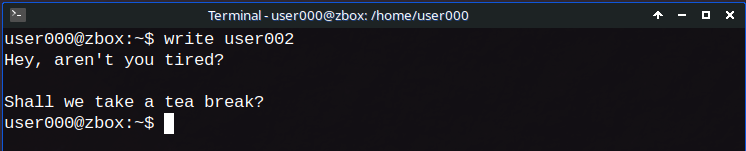
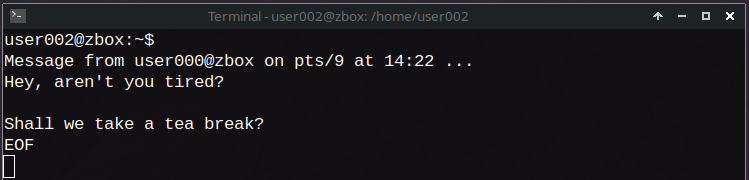
The write program imposes no rules, doesn’t have a protocol except that pressing <Enter> sends complete lines to the other side. The convention is to take turns, ending turn with o (for “over”), and to signal your intent to quit with oo (for “over and out”). Finally, Ctrl-D ends the connection.
The following screen artificially separates the messages of the two partners:
     userX’s terminal     userY’s terminal
     −−−−−−−−−−−−−−−−     −−−−−−−−−−−−−−−−
    $ write userY
                          Message from userX ...
                          $ write userX
    Message from userY ...
    How about lunch? (o)
                          In ten minutes. (o)
    Fine! (oo)
                          Agreed. (oo)
                          Ctrl−D
    EOF
    Ctrl−D
                          EOF
Note that you can activate or deactivate these messages. Read the man page for mesg.
6.2.2 talk
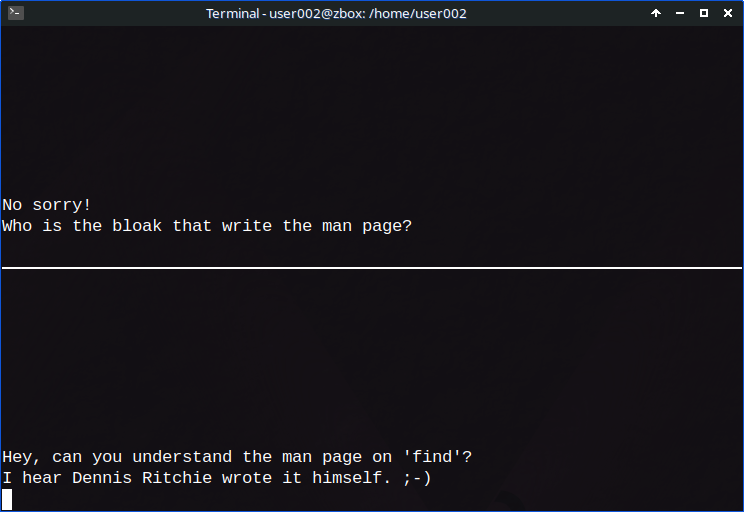
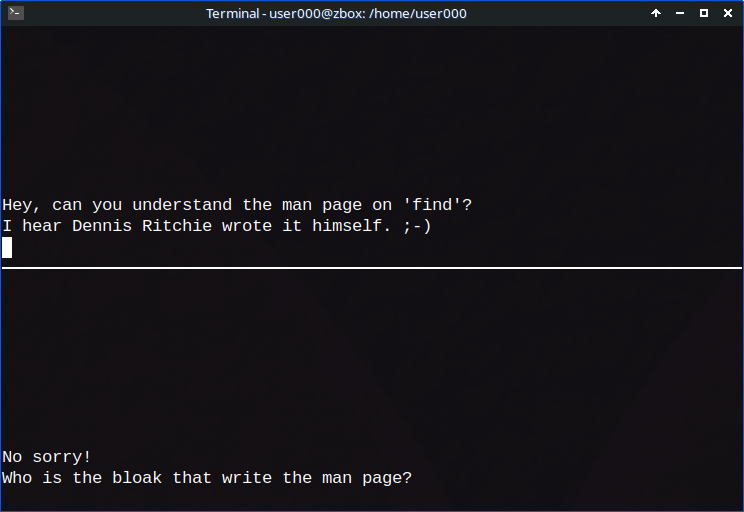
talk is what is today known as “chat”. In the example below user002 starts a conversation by typing 'talk user000'. Then user000 responds by typing the opposite, 'talk user002', that will join them in a full screen chat:
6.3 Mail
The system provides a postal system to the users. You must have seen a message about mail as you logged in. You might even get notices of newly arrived mail.
To read your mail, open your mail client, in our case mailx, which also has the synonym mail. An overview of your mails, called mail headers, will be printed (only if you have mail in the mailbox):
”/var/mail/a01”: 3 messages 1 new
O 1 Imran Khan Fri Feb 11 19:27 31/794 Hi there!
O 2 Sharuk Khan Fri Feb 12 21:12 31/794 Greetings
>N 3 Kublai Khan Fri Feb 12 09:13 31/794 Bye bye
The current message is marked with the arrow. To read it just type p (print). To read a specific message type p N, N being the message number. h (headers) will give you the listing of headers. s FILENAME (save) will save the current message in a file. d deletes messages, and q quits mail.
Here is a session reading mail:
p 1
Return-Path: <root@zbox>
X-Original-To: root
Delivered-To: root@zbox
Received: by zbox (Postfix, from userid 0)
    id A0BC1FE2013; Tue,  3 Dec 2024 10:02:45 +0100 (CET)
To: root@zbox
Subject: Hi there!
User-Agent: mail (GNU Mailutils 3.15)
Date: Tue,  3 Dec 2024 10:02:45 +0100
Message-Id: <20241203090245.A0BC1FE2013@zbox>
From: root <root@zbox>

Hi
[...]
Sending mail to someone is straightforward:
$ mail a01
[or within mail, m a01]
Cc: a99
Subject: My grand theft
Good morning

How are you?

Cheers

?
Here too you typed Ctrl-D to mean EOT (End Of Text).
For practice, send a mail to yourself. (It is not as odd as it may sound - it’s a handy way of taking notes.)
There are other ways of sending mail – you can send a previously prepared letter, you can mail to a number of people all at once, and you may be even able to send mail to people on other machines. In this week’s assignment you will learn more about these things.
Note that the simple mail program we have in the practice computer is not a full featured mail client with encryption, attachments, etc., which are beyond this course. But simple things like “signature” works. Create a file called .signature (note the dot as the first character) in your home directory and then try sending a mail.
Summary
In this week you’ve learnt:
- that who tells you who is logged in and w what they are doing
- that last and finger commands give you information even when the others are off-line and that you can leave messages behind in the .project and .plan files
- to write and talk to others
- to use the built-in (local) postal system mail